
Adding Home page shortcut
The following are the steps to add a custom shortcut to PaperSave Home:
1) Click on the Home page shortcuts tile in the General Settings section of the Configuration Area.
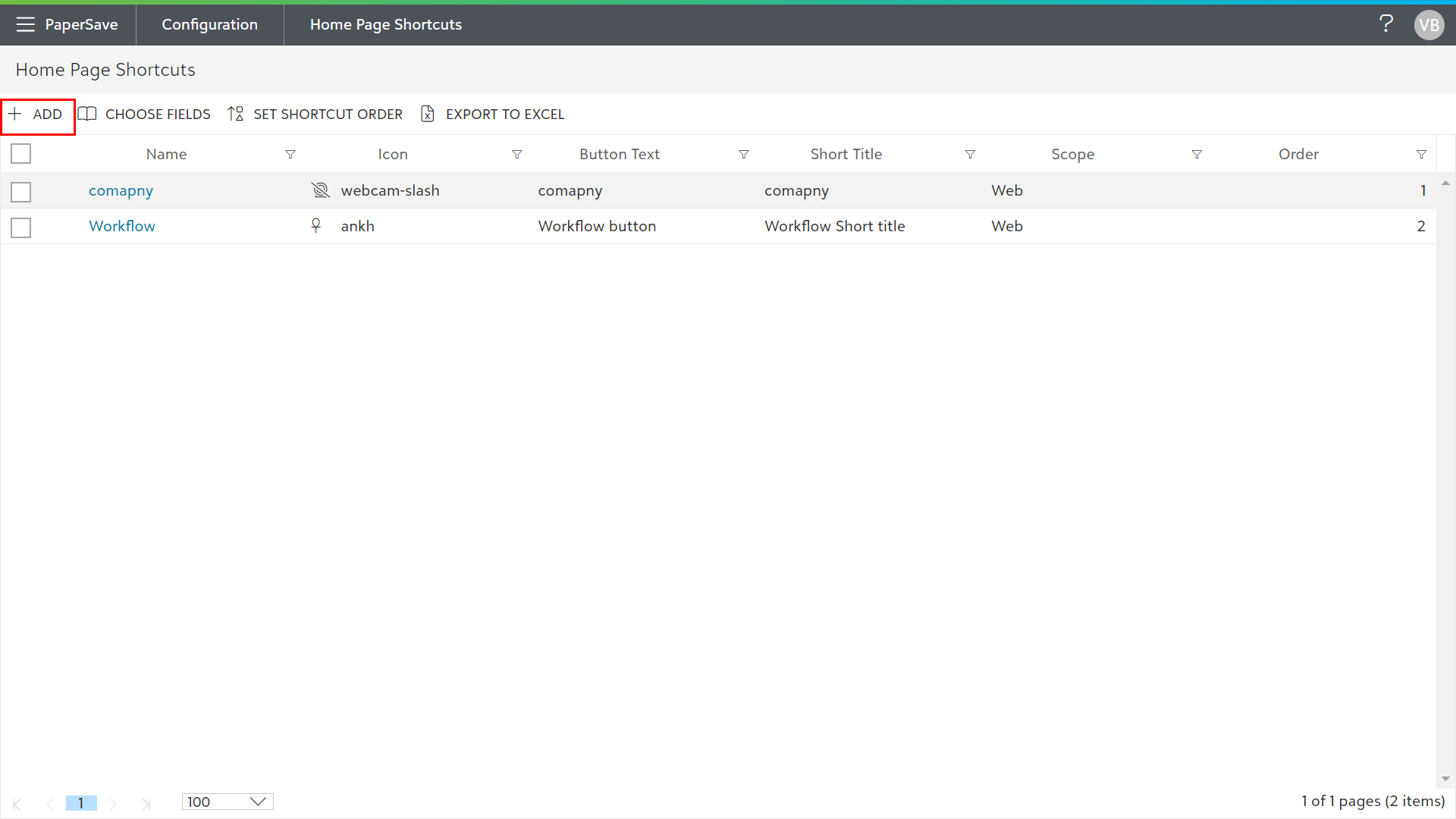
2) Click on the +ADD option from the list toolbar as shown in the below screen.
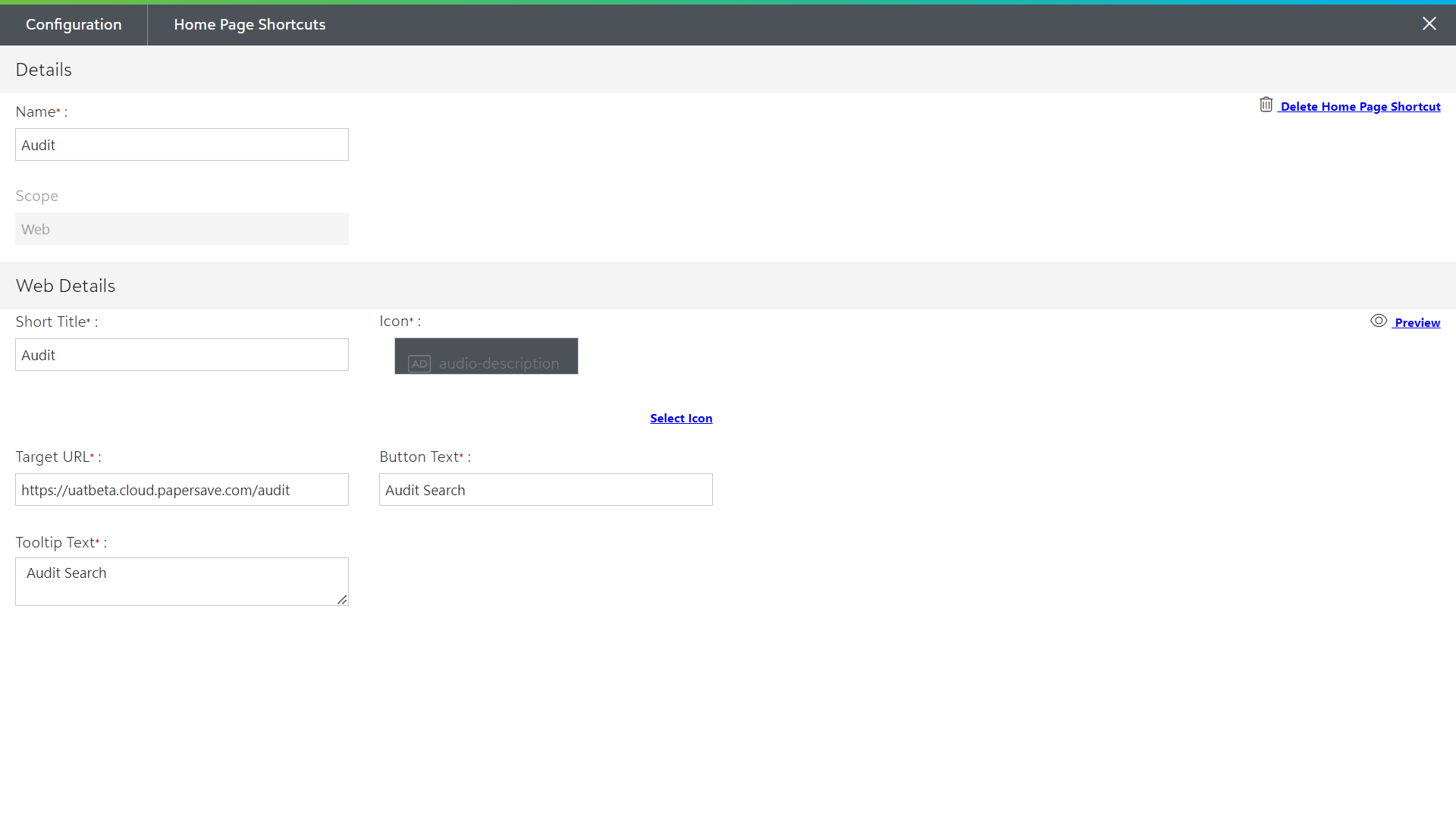
3) Now, enter all the required details to create the shortcut.
- Name: Enter the desired name for the shortcut.
- Scope: You can define the shortcut for Web and Mobile.
- Short Title: Enter the title to be displayed in the shortcut tile.
- Icon: Select the desired icon image from the list to be displayed on the shortcut.
- Target URL: Enter the destination URL where the shortcut should navigate when you click on the button.
- Button Text: Enter the text to be displayed on the button.
- Tooltip Text: Enter the text to be displayed when users hover over the shortcut icon.
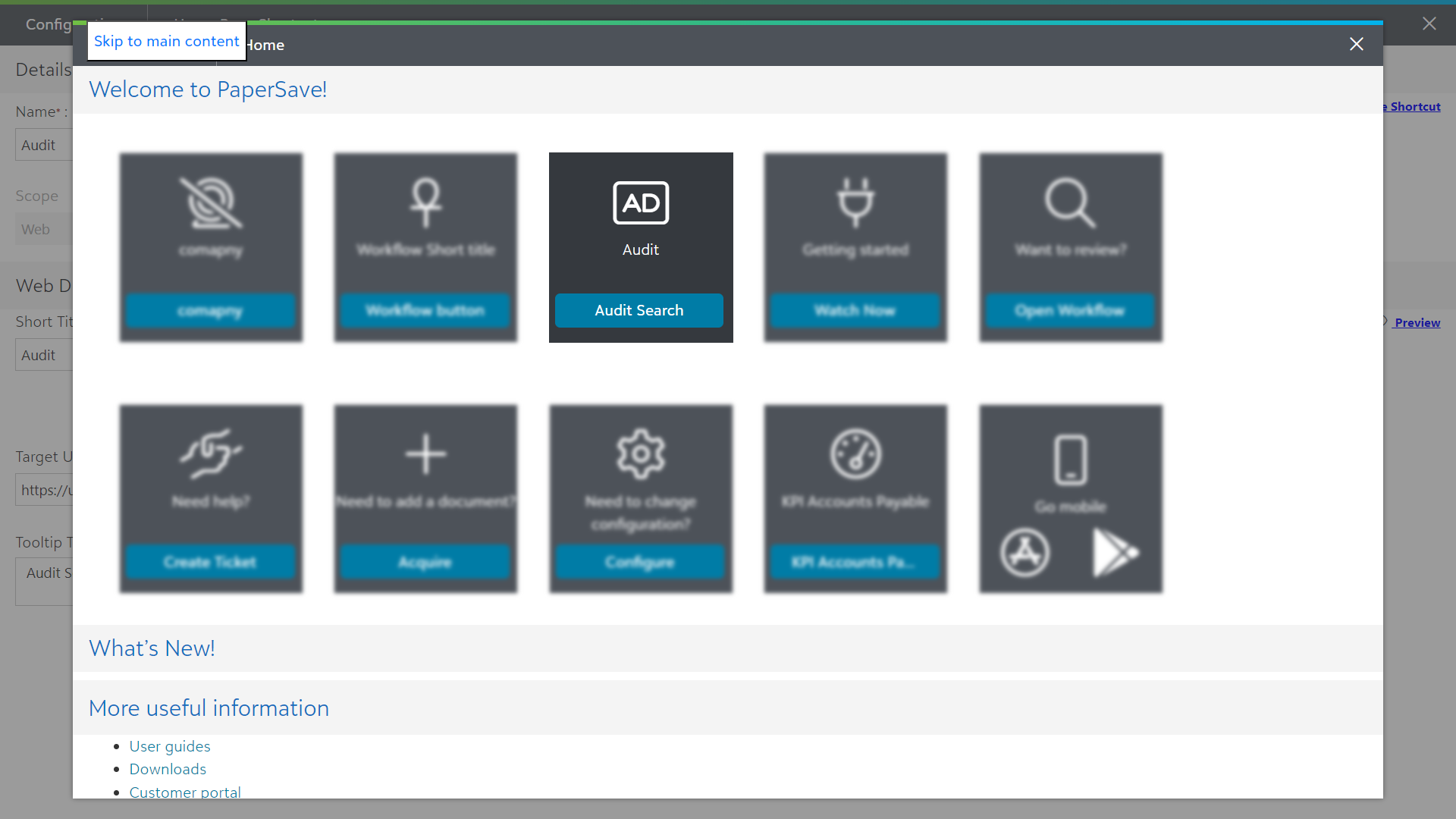
4. Click on the Preview option to see how the shortcut looks in PaperSave Home before saving it, as shown in the below screen.
Note: You are required to fill in all the details before you can preview the shortcut.
5. Now, click on the Save Home Page Shortcut in the upper-right corner to save the new shortcut. In case you want to exit without saving it, click on the X in the upper-right corner or press an Esc from the keyboard.
List Toolbar options in Home page shortcuts
The following toolbar options are available in Home page shortcuts:
- +ADD: Click on +ADD to create a new Home page shortcuts.
- CHOOSE FIELDS: You can define the user preference to manage which field gets displayed in the current list of shortcuts using Choose Fields.
- SET SHORTCUT ORDER: You can set the desired order of all the user-defined shortcuts available in the list. Click here to know more.
- EXPORT TO EXCEL: You can export the current list of shortcuts to Microsoft Excel Sheet.
Note: By default, new shortcut tile will be added before the pre-defined shortcuts and after the existing user-defined shortcut(s). You can change the order of the custom shortcuts by using the Set Shortcut Order option.